
Check a fan's event history
The Events tab on a fan’s record gathers their whole history with your organisation: which events they attended, how many tickets they bought and how much they spent. This guide shows you how to read it. About 4 minutes.
Before you start
Section titled “Before you start”You need a fan with at least one recorded purchase. If you have not connected your ticketing platform yet, follow Connect your ticketing platform first: without synced sales the history is empty.
Step 1: Open the Events tab on the fan record
Section titled “Step 1: Open the Events tab on the fan record”In the side menu, click Fans and search for the fan by name or email. Click their row to open the record.
In the record menu, go to Events.
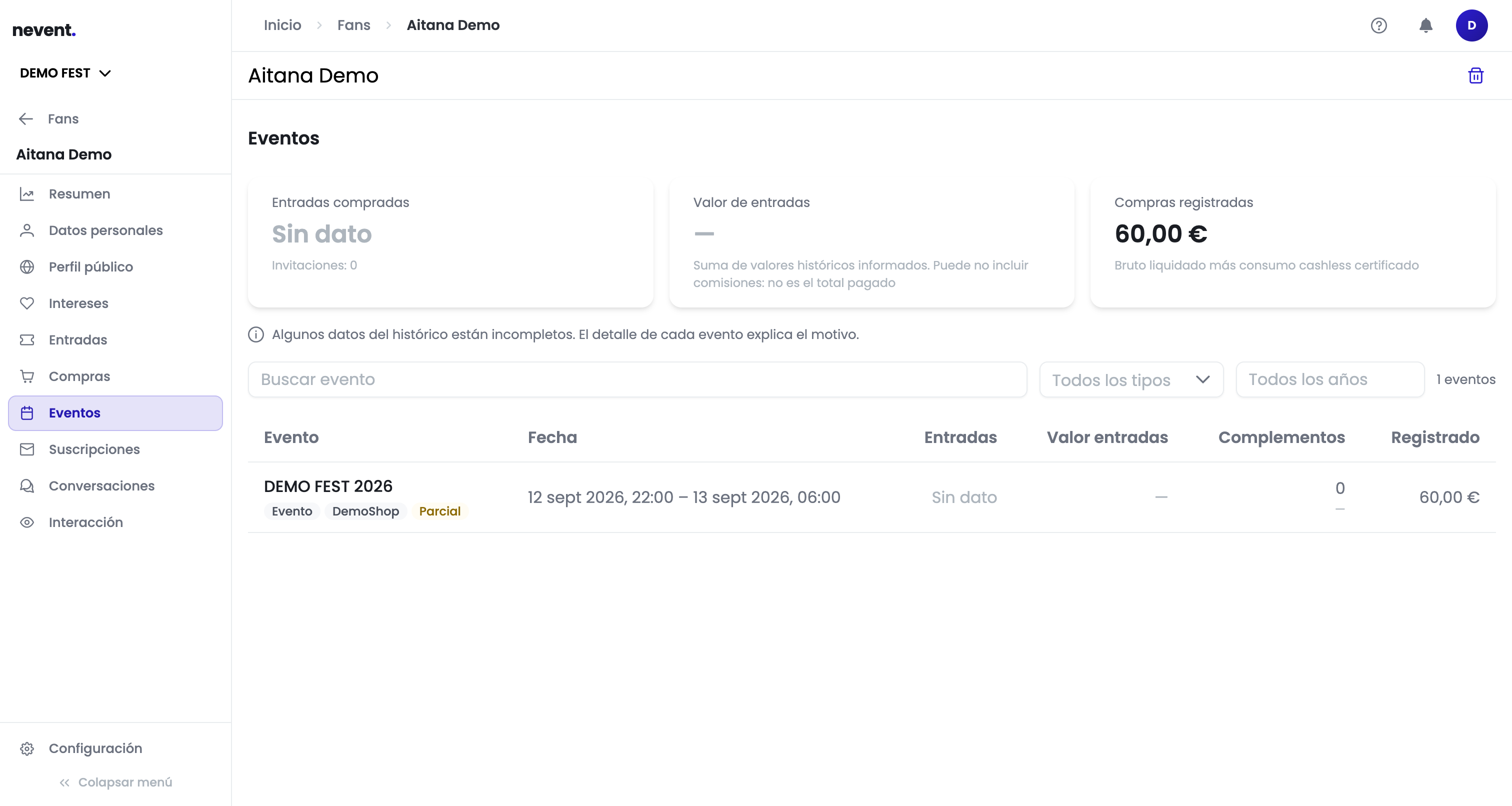
Step 2: Interpret the three history figures
Section titled “Step 2: Interpret the three history figures”The three cards at the top summarise the fan’s entire relationship with you, not just the visible period:
| Figure | What it means |
|---|---|
| Tickets bought | Tickets the fan purchased, with invitations counted separately |
| Ticket value | Sum of reported historical values; it may exclude fees, so it is not the total paid |
| Recorded purchases | Settled gross plus certified cashless spend |
When a figure cannot be calculated you will see No data or Not applicable instead of a zero. They mean different things: “No data” is missing information, “Not applicable” is information that does not exist for that fan.
Step 3: Open an event’s detail panel
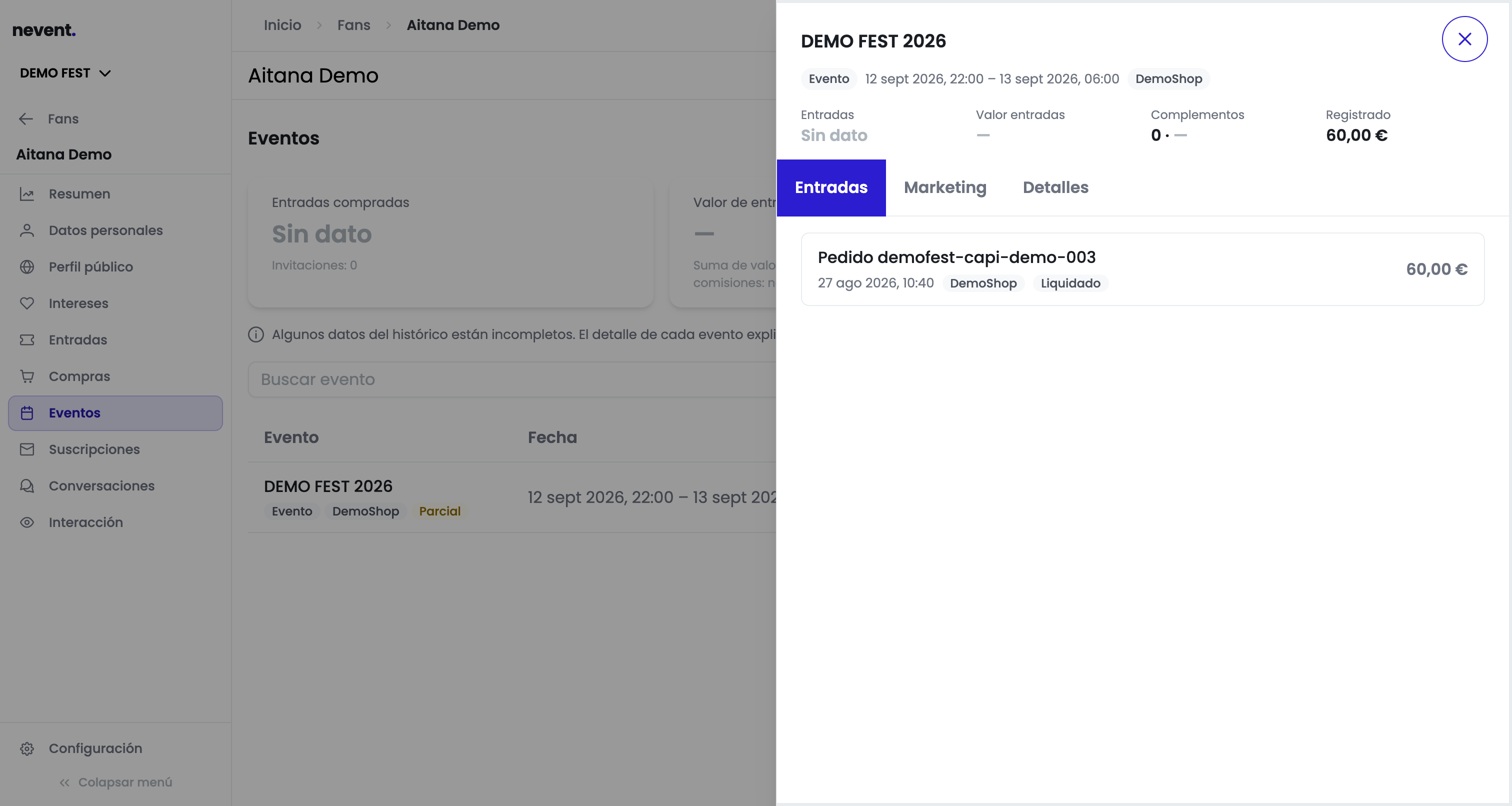
Section titled “Step 3: Open an event’s detail panel”Click any row in the table. A side panel opens with that event’s figures and up to three tabs:
- Tickets: the related orders, with their date, channel and amount.
- Marketing: the campaigns linked to that event. If there are none, the panel says so.
- Details: the data’s traceability.
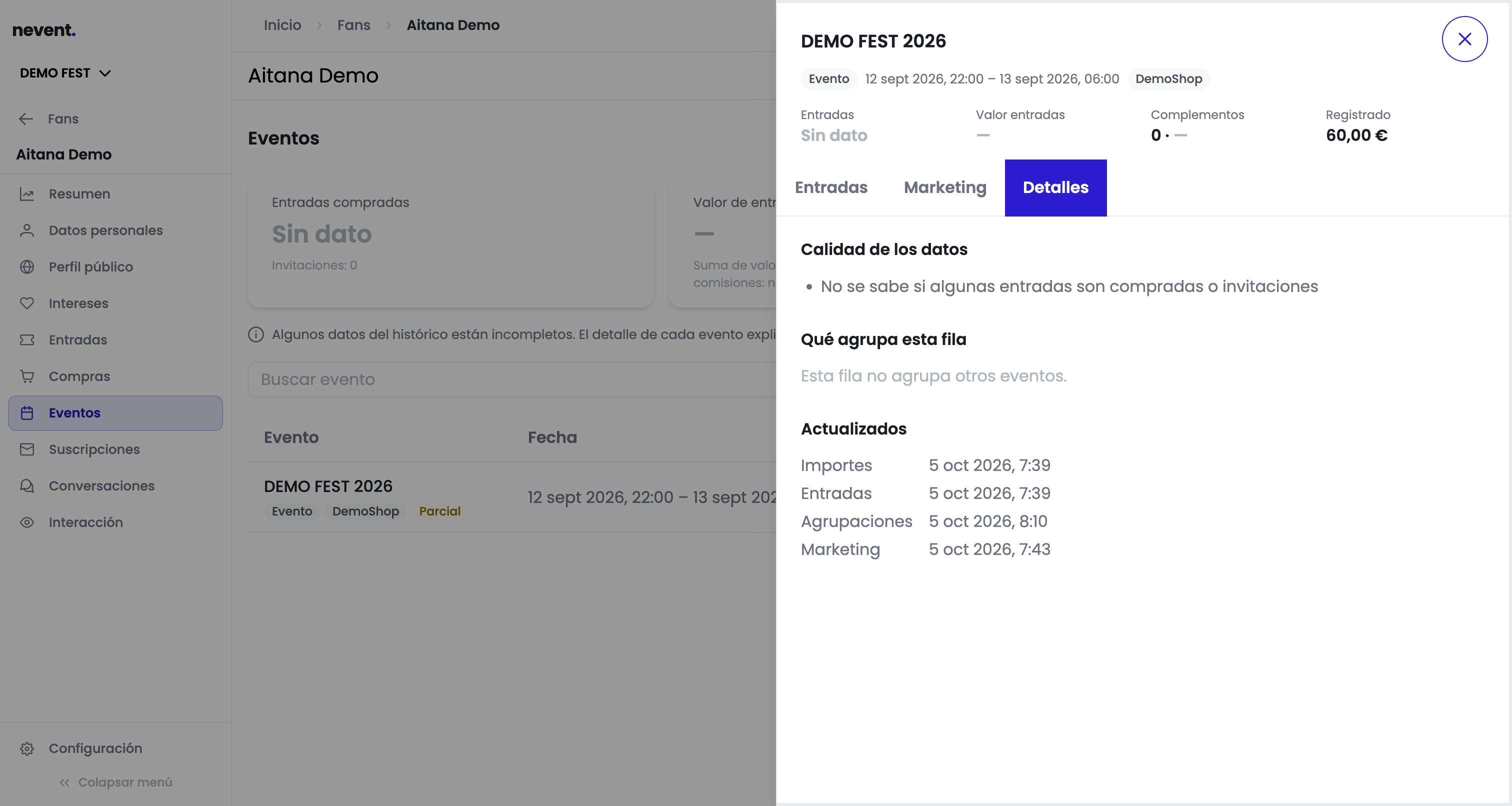
Step 4: Check data quality in Details
Section titled “Step 4: Check data quality in Details”The Details tab explains why a number is what it is. It gathers three blocks:
- Data quality: the specific reasons why information is missing, for example that it is unknown whether some tickets were bought or given away.
- What this row groups: if the row brings together several editions of the same event, you see which ones here.
- Updated: the date and time of the last update for amounts, tickets, groupings and marketing.
Result
Section titled “Result”You can now answer, for any fan, which events they attended and how much they spent, and you know where to look when a figure does not add up. Use it before segmenting: a fan with an incomplete history may fall out of a spend-based segment through no fault of their own.
Next step
Section titled “Next step”- Manage a fan profile for the rest of the record.
- How Nevent understands your audience to learn where each data point comes from.
- Your first segment to group fans by their history.