
How to connect your Nevent account to Claude
In under three minutes you’ll have Nevent connected to Claude Desktop. No configuration files to edit, no tools to install, no technical steps — everything is done from the Claude Desktop interface.
From there you can ask things like “show me the campaigns with the highest conversions” or “give me the segments with the most contacts” directly from the chat.
What is this
Section titled “What is this”This connection lets Claude talk directly to your Nevent account. Once connected, you can use natural language to query data, create segments, analyze campaigns or manage short links, all from Claude Desktop.
Examples of things you can ask Claude once connected:
- List my latest campaigns and tell me which has the best open rate
- How many clicks has my latest short link had
- Create a segment with users who attended my last event
What you need
Section titled “What you need”- Claude Desktop installed on your computer. Download it from claude.ai/download if you don’t have it yet.
- An active Nevent account. If you don’t have access, contact support.
Connect Nevent to Claude Desktop, step by step
Section titled “Connect Nevent to Claude Desktop, step by step”Step 1. Open Claude Desktop
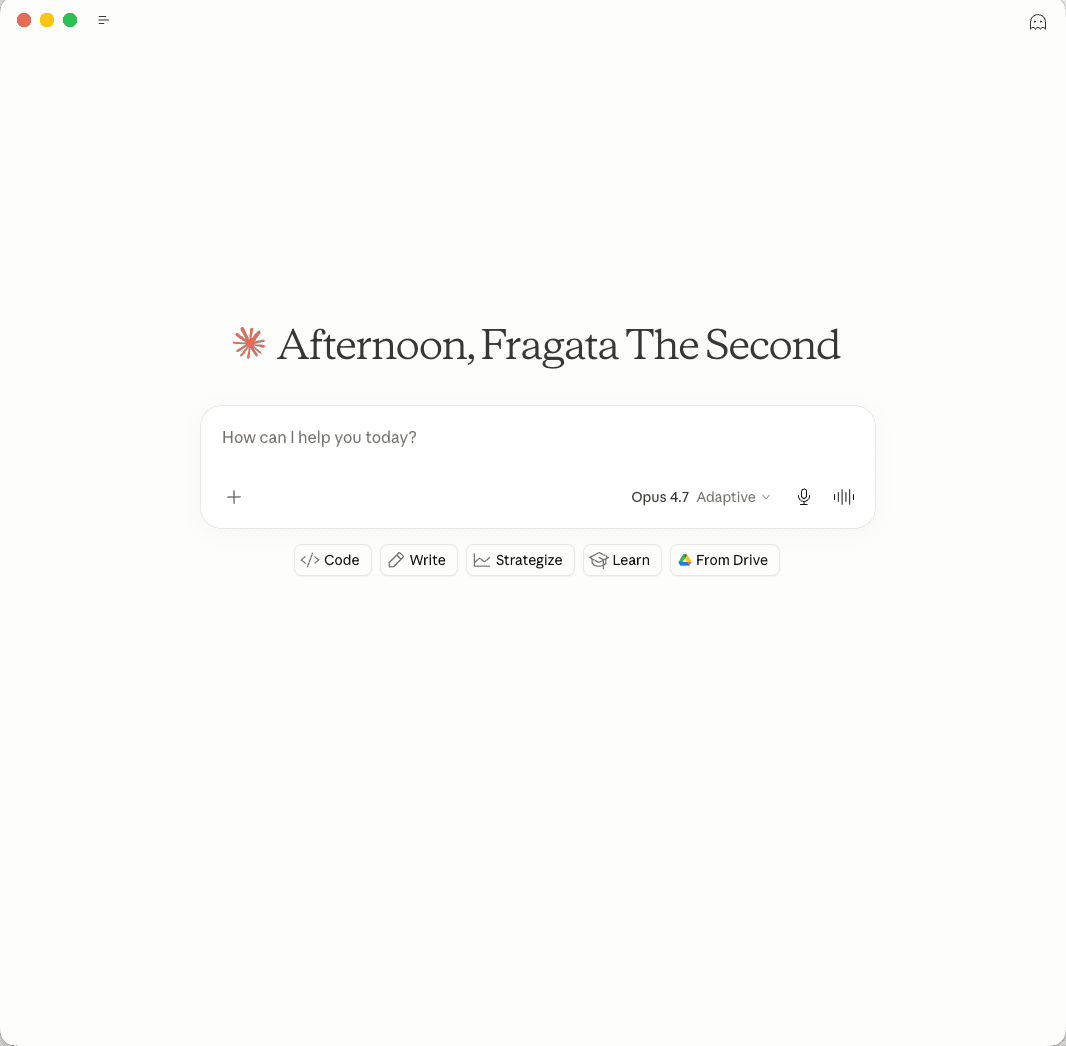
Section titled “Step 1. Open Claude Desktop”Launch the Claude Desktop application on your computer.
Step 2. Open Settings
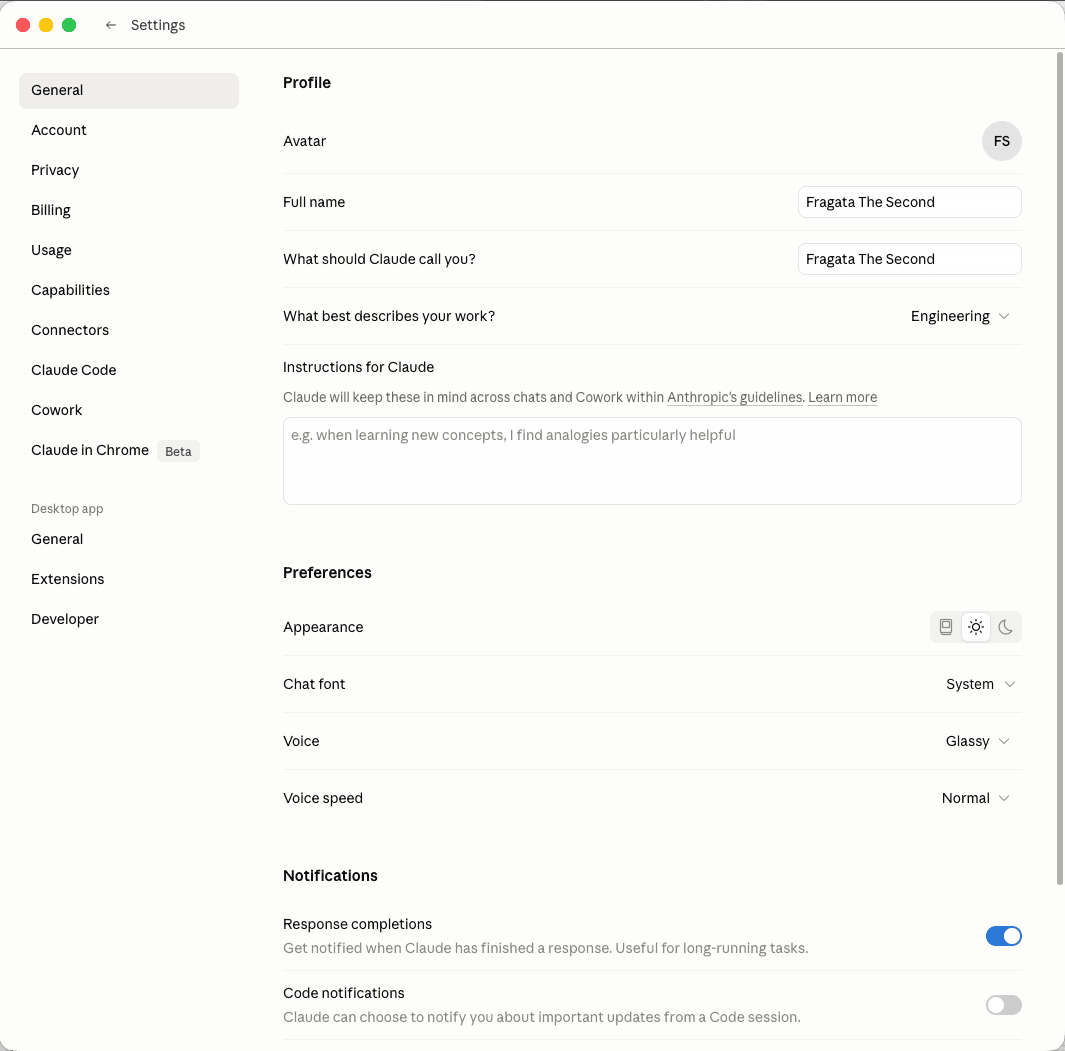
Section titled “Step 2. Open Settings”Open the application settings:
- On Mac: press
cmd + ,or go to the Claude → Settings menu. - On Windows: press
ctrl + ,or go to the File → Settings menu.
Step 3. Go to the Connectors section
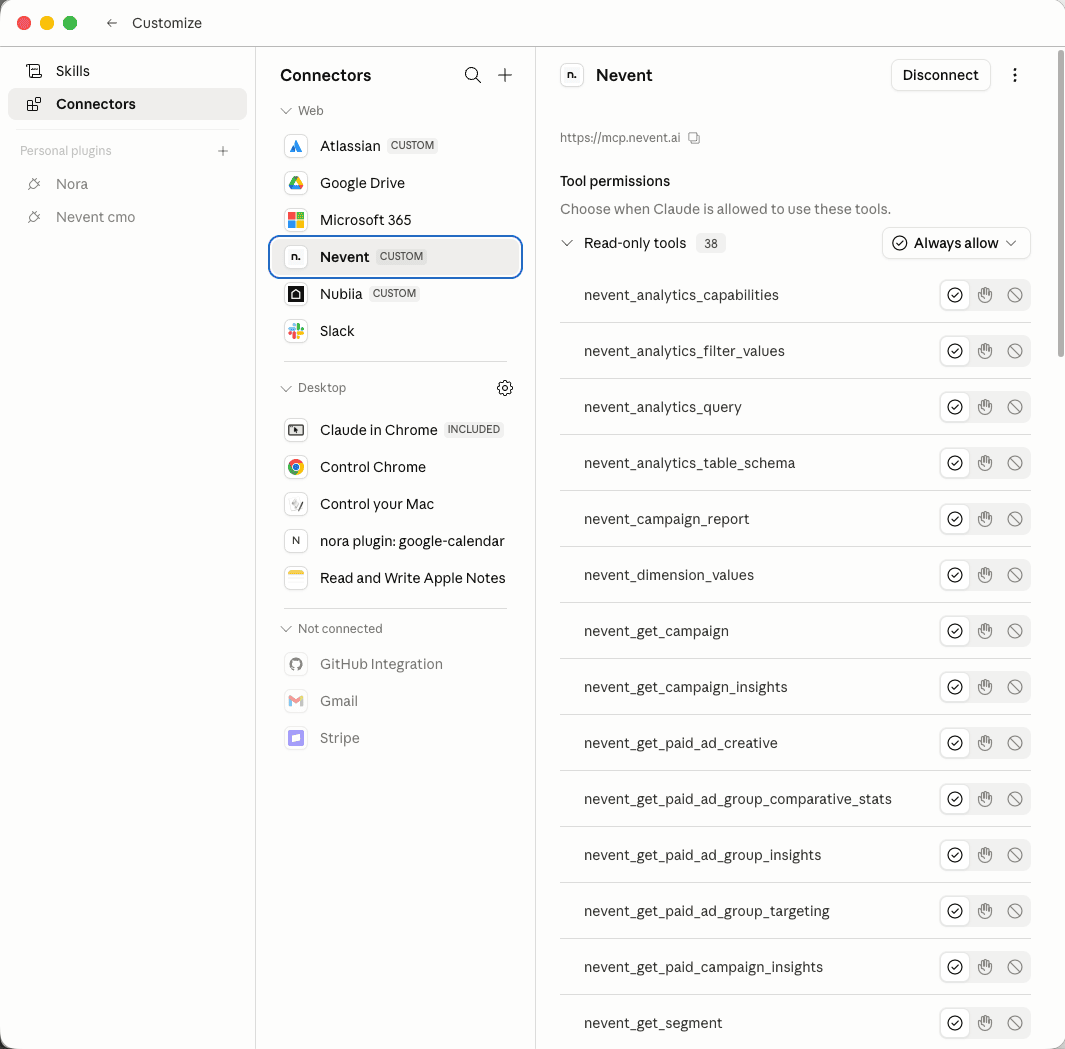
Section titled “Step 3. Go to the Connectors section”In the settings panel, look for a section called Connectors, Integrations or Extensions (the exact name depends on the language and version of Claude Desktop).
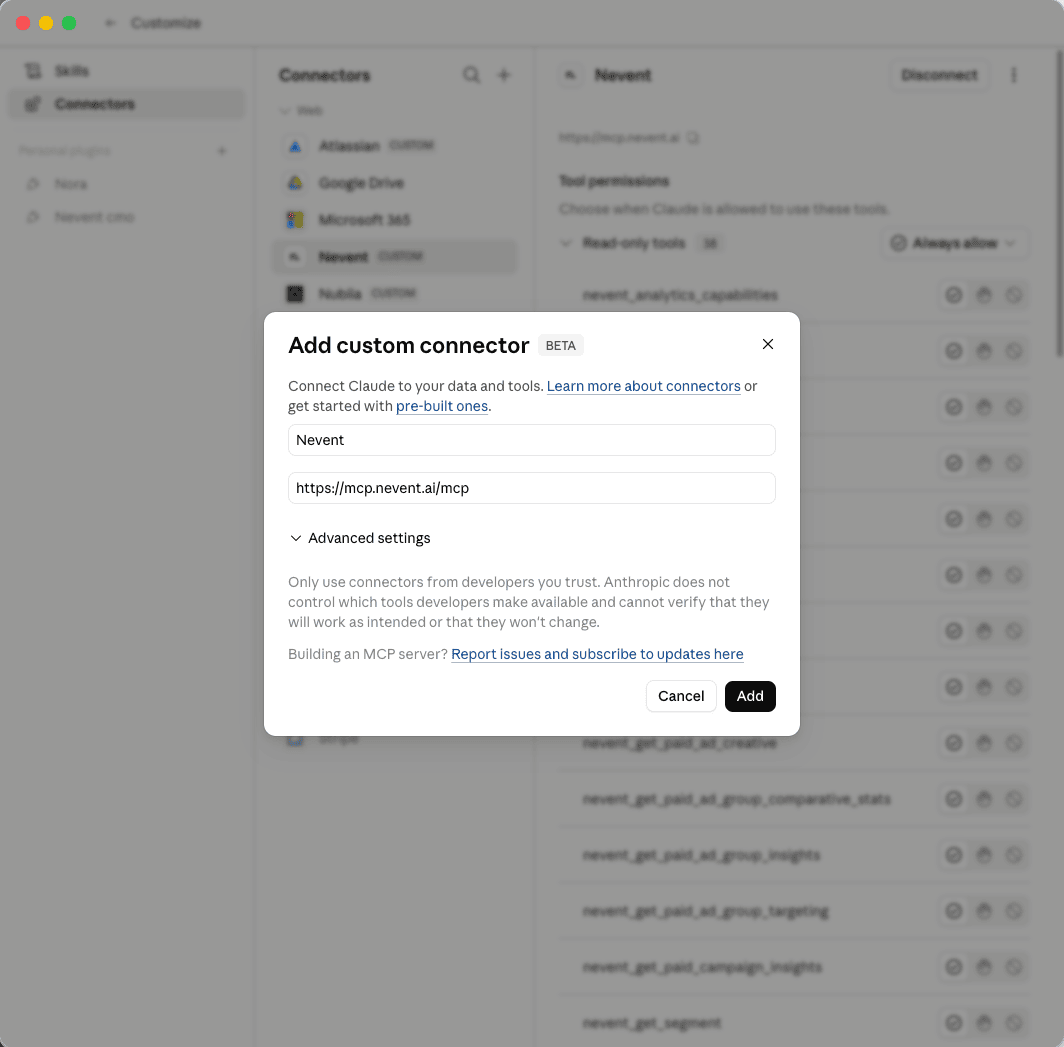
Step 4. Click “Add Custom Connector”
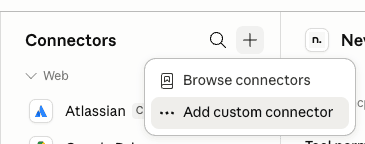
Section titled “Step 4. Click “Add Custom Connector””Look for the Add Custom Connector button or similar and click it.
Step 5. Fill in the form
Section titled “Step 5. Fill in the form”A form will appear with two fields. Fill them in exactly as follows:
| Field | Value |
|---|---|
| Name | Nevent |
| URL | https://mcp.nevent.ai/mcp |
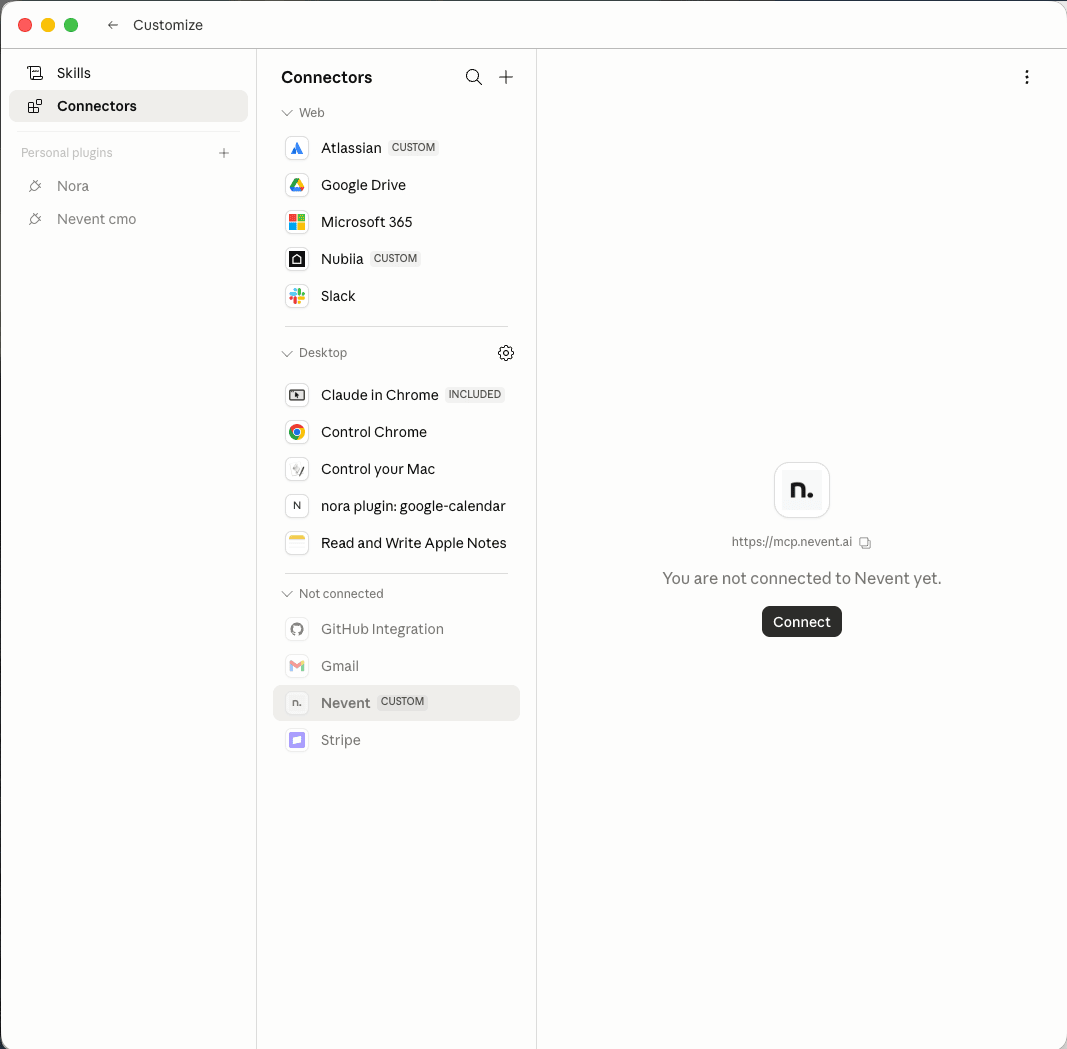
Step 6. Click “Connect”
Section titled “Step 6. Click “Connect””Click Connect or Add. Claude Desktop will automatically open a browser window for you to sign in to Nevent.
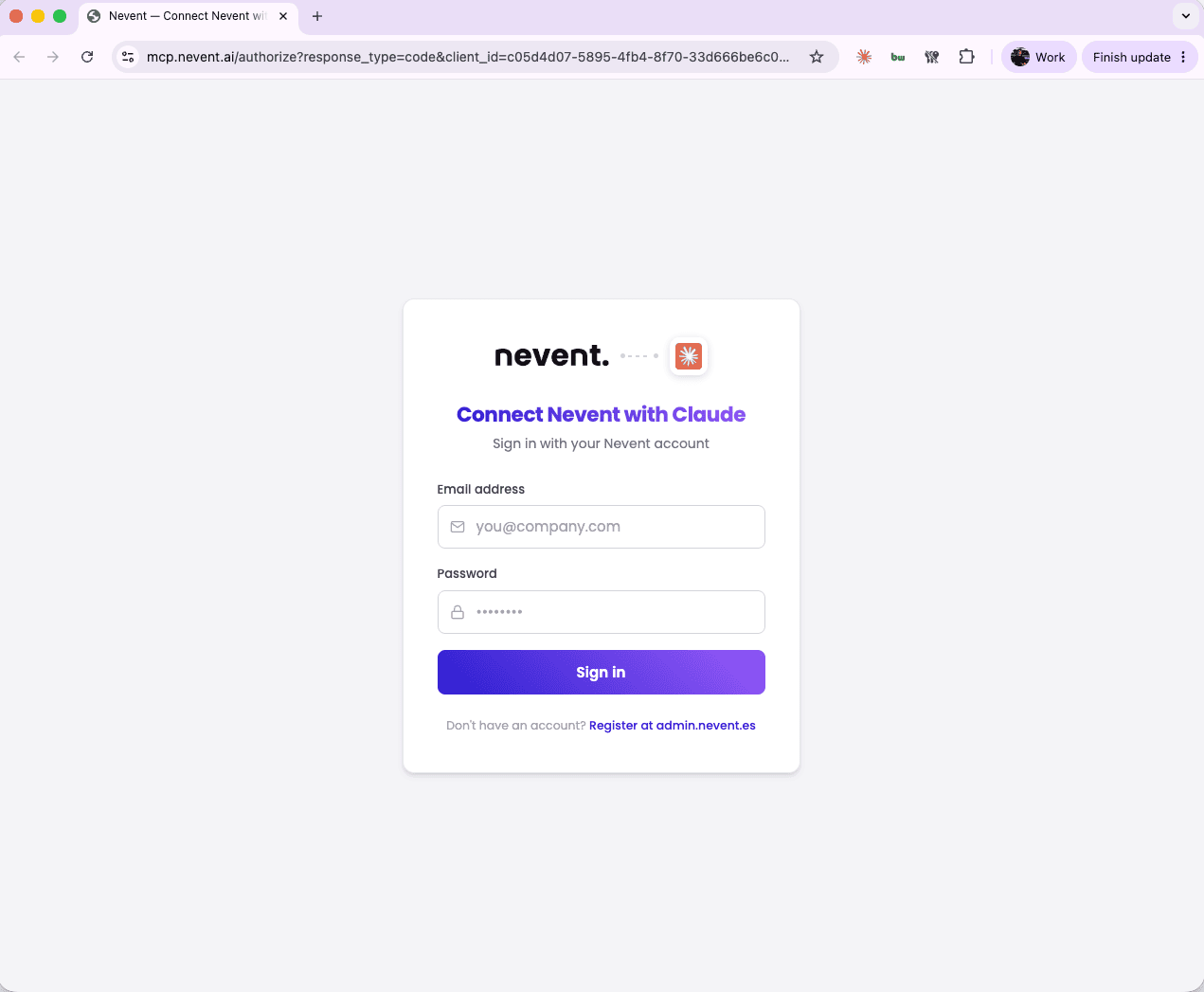
Step 7. Sign in to Nevent
Section titled “Step 7. Sign in to Nevent”In the browser window that has opened, enter your usual Nevent credentials (the same username and password you use to log in to the admin panel).
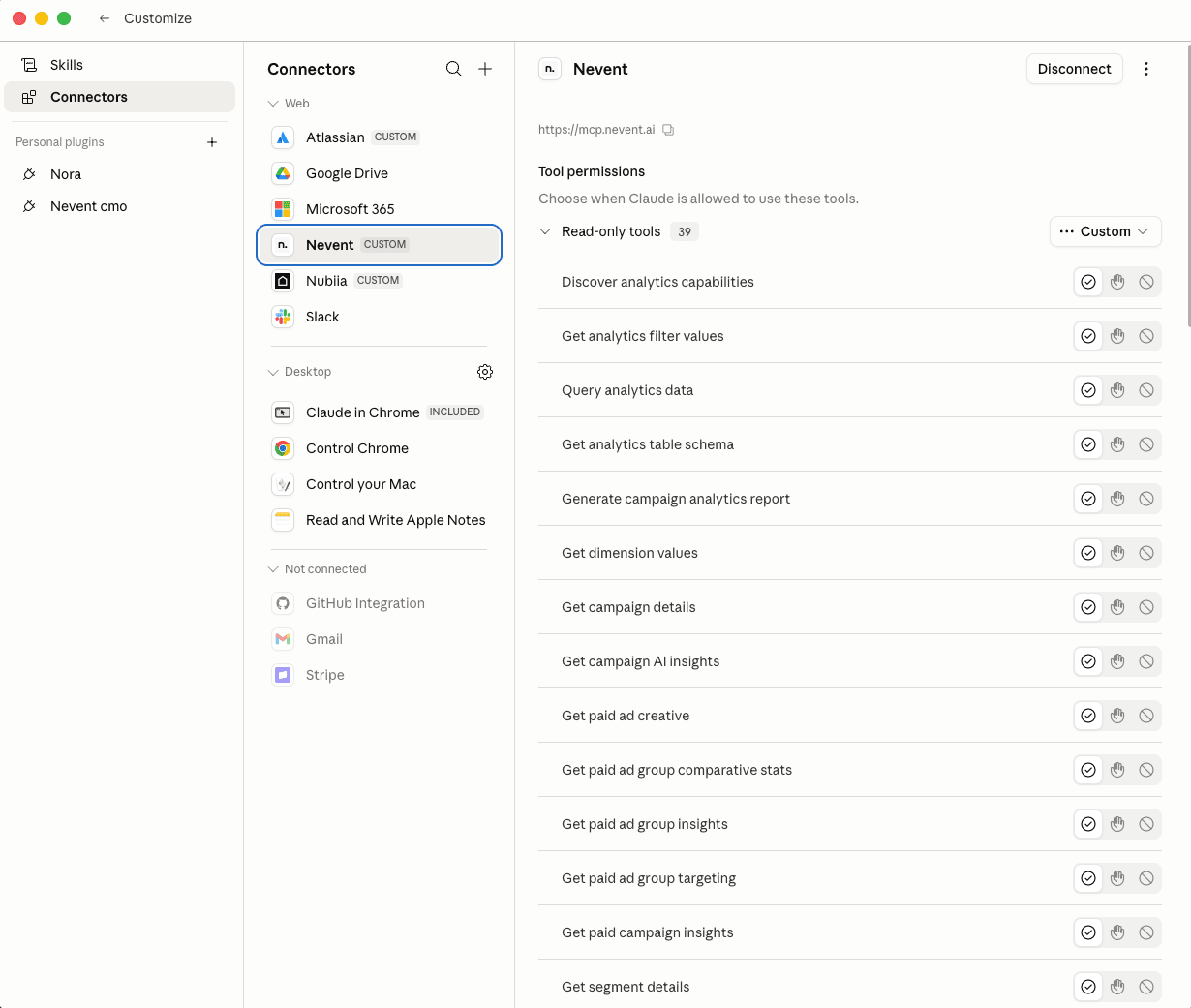
Step 8. Return to Claude Desktop
Section titled “Step 8. Return to Claude Desktop”Close the browser window (or it will close itself) and return to Claude Desktop. You should see Nevent in your list of active connectors with the status “Connected”.
Verify it works
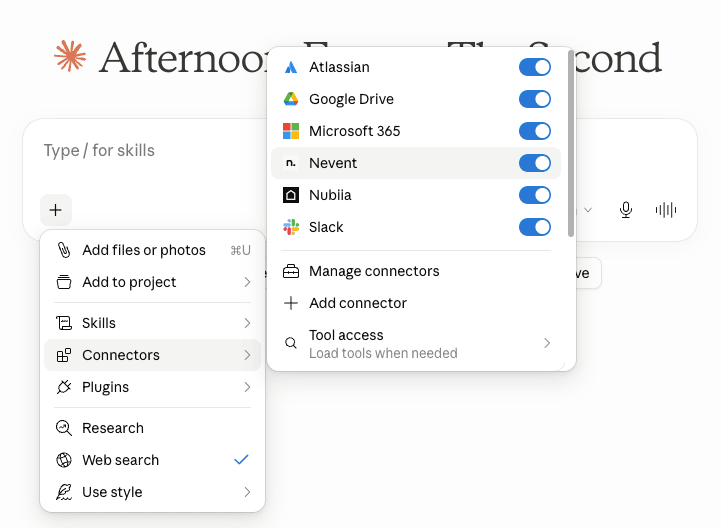
Section titled “Verify it works”Open a new conversation in Claude Desktop. In the writing bar, click the tools icon (or the + button) and check that Nevent appears in the list of available tools.
Your first test
Section titled “Your first test”Type any of these messages in the chat to verify the connection works:
- List my latest campaigns
- Give me the segments with the most contacts
- How many clicks has my latest short link had
Claude will respond with real data from your Nevent account.
What you can ask
Section titled “What you can ask”Here are some of the things you can do with the connector active. You don’t need to know anything technical: just write what you want in natural language.
| You want to… | Ask Claude… |
|---|---|
| View your recent campaigns | Show me the last 10 campaigns and their main metrics |
| Analyze campaign performance | How many opens and clicks did my last email campaign have |
| Create an audience segment | Create a segment with attendees of my festival on June 15 |
| Explore your audience | What type of users convert most in my events |
| Generate a short link | Make me a short link to send to my VIP list for the next concert |
| View link statistics | How many clicks has the short link I created last week had |
| Review advertising campaigns | How are my Meta campaigns doing this month |
| Prepare the next send | Help me write an email to promote my next summer festival |
If something doesn’t work
Section titled “If something doesn’t work”| Problem | Solution |
|---|---|
| I don’t see “Connectors” in Settings | Update Claude Desktop to the latest version from claude.ai/download. |
| Error connecting after entering the URL | Check that the URL is exactly https://mcp.nevent.ai/mcp, with the s in https and /mcp at the end, with no spaces or extra characters. |
| The Nevent login fails | Check that your Nevent account is active. If it persists, contact support@nevent.ai. |
| I don’t see “Nevent” in the chat tools list | Close Claude Desktop completely (cmd+Q on Mac, or from the system tray on Windows) and reopen it. |
| Claude says it doesn’t have access to Nevent | The connection may have expired. Go to Settings → Connectors, remove the Nevent connector and repeat the process from Step 4. |