
Cómo hacer
How to change a template's send type
También llamado: transactional template, marketing or transactional, send type
Every email template has a send type: marketing or transactional. Nevent works it out from the content, but when it gets it wrong you can now change it yourself from the panel. This was not possible before and had to be requested from support.
This guide covers the change in both directions and explains what you are accepting when you switch a template to transactional, which is the delicate part.
Before you start
Section titled “Before you start”You need to be an administrator or the account owner. With any other role you will see the screen, but you will not be able to save the change.
Be clear about what each type means, because it decides who receives the email:
| Marketing | Transactional | |
|---|---|---|
| What it contains | Promotions, news and sales | Only operational notices about a purchase, a registration or an event |
| Unsubscribe link | Included | Not included |
| The person’s preferences | Respected | Not respected |
The practical consequence: a transactional template is also sent to people who opted out of your marketing. That is why it should only be used for genuine notices, such as a schedule change or a change of venue.
Step 1: Open the template menu
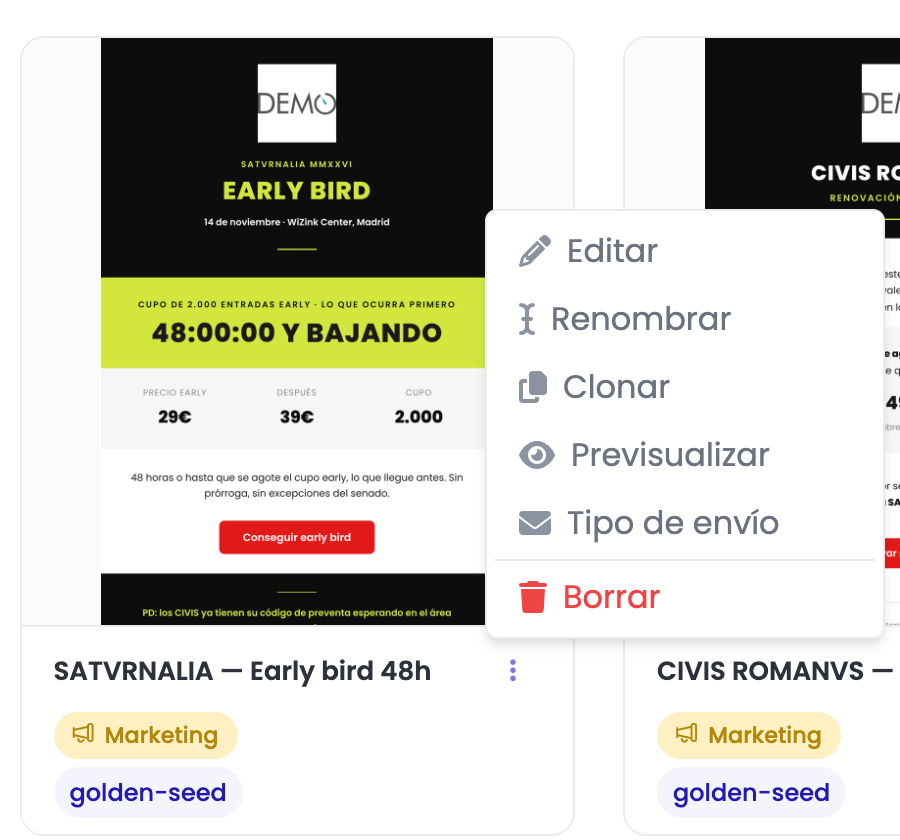
Section titled “Step 1: Open the template menu”Go to Templates in the side menu and stay on the “Email templates” tab. Find the template you want to change and open its options menu.
Among the actions you will see Send type, right below “Preview”. Click it.
Step 2: Check the current type and where it comes from
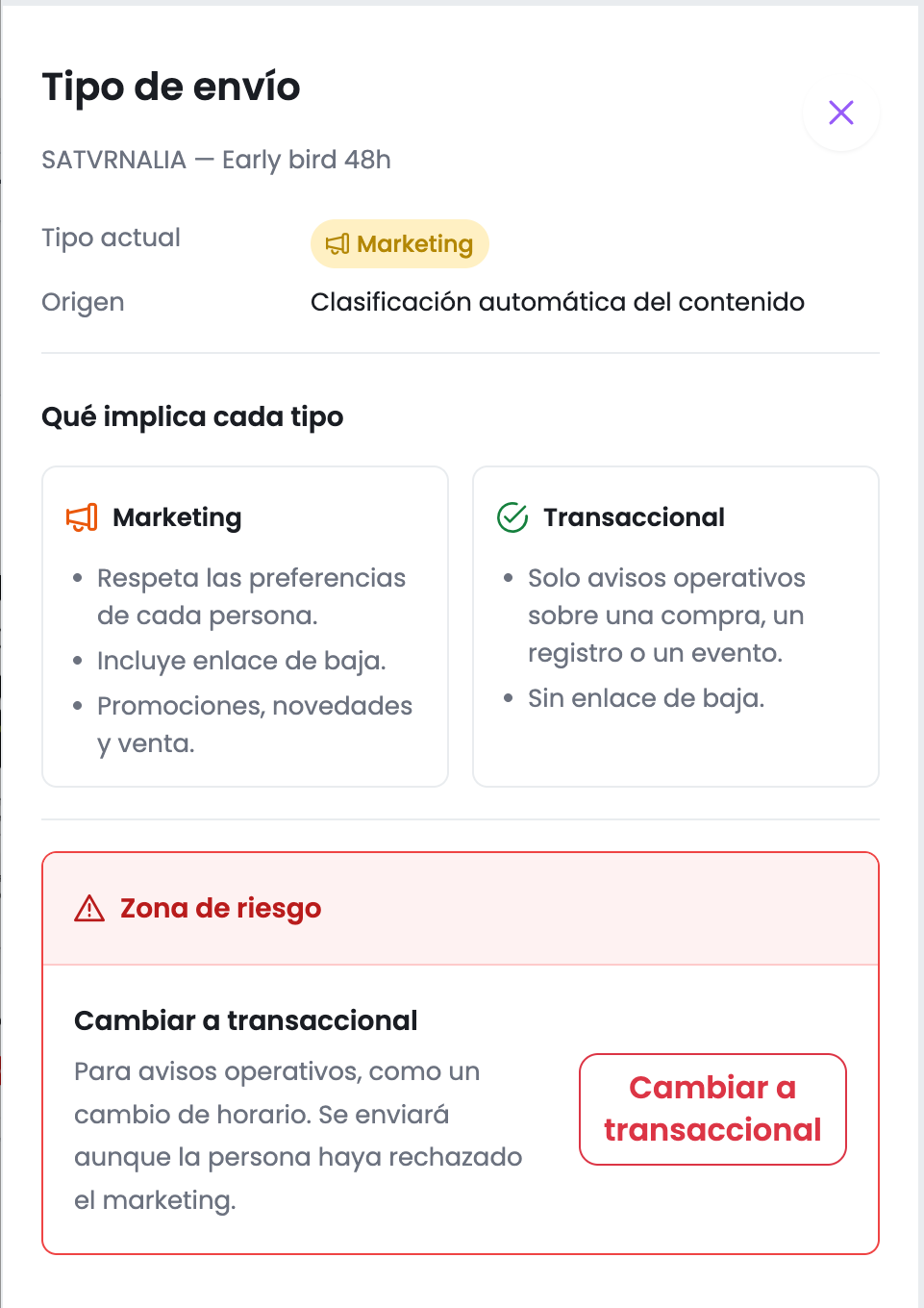
Section titled “Step 2: Check the current type and where it comes from”A side panel called “Send type” opens with two pieces of information:
- Current type: marketing or transactional.
- Source: where that type comes from. It can be “Automatic content classification” (Nevent decided), “Manual change” (a person decided, and you will see the date), “Not classified yet: sent as marketing” or “Classified as transactional, pending review: sent as marketing”.
The last two are worth reading carefully: they mean Nevent has not settled the classification yet and that, until it does, the template goes out as marketing. If you need it to go out as transactional before then, you will have to change it manually.
Further down, the “What each type means” block repeats the comparison from the table above.
Step 3: Switch to transactional
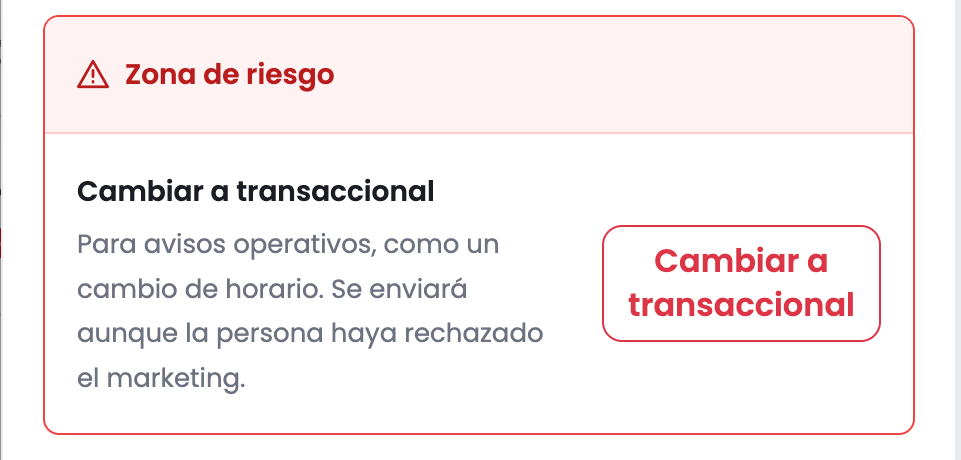
Section titled “Step 3: Switch to transactional”At the bottom of the panel there is a section called Danger zone with the Switch to transactional button. The name is not decorative: this is the change with consequences.
Clicking it opens a confirmation window asking you to accept four things:
- That the template contains operational notices only, with nothing promotional.
- That it will be sent without an unsubscribe link, including to people who opted out of marketing, and that your marketing emails must keep respecting consents and unsubscribes.
- That there is a reputation risk: if you use it for promotion, your emails can end up in spam, providers such as Google can block them, or your email sending can be paused.
- That the change stays even if you edit the template, and that you can switch back to marketing at any time.
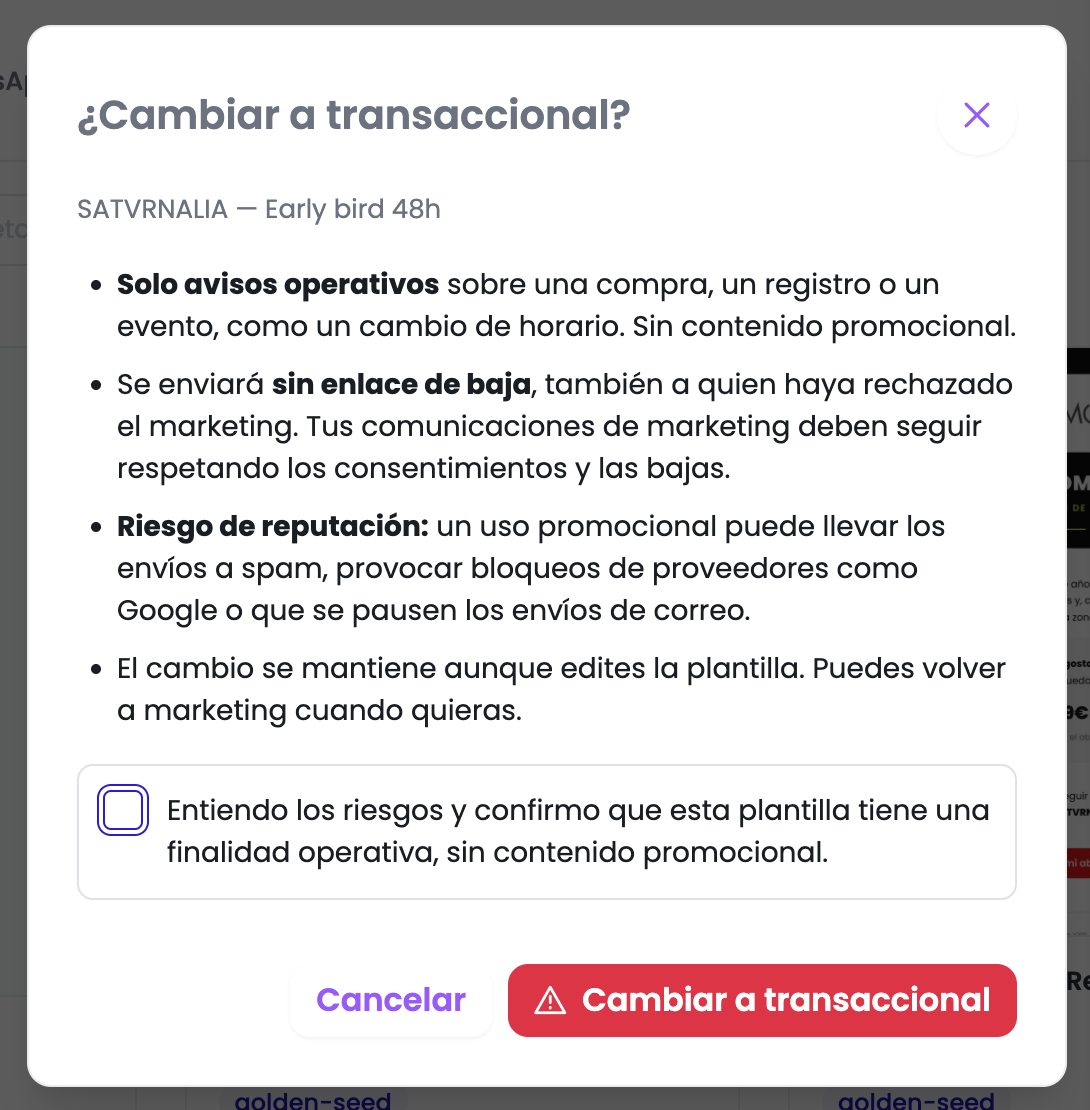
Tick the confirmation box and click Switch to transactional. Without ticking it nothing is sent: you will see the notice “Tick the box to continue”.
If the change fails, the window stays open with your box ticked and the template stays as it was. Nothing is left half done.
Step 4: Switch back to marketing if you got it wrong
Section titled “Step 4: Switch back to marketing if you got it wrong”The same panel has Switch back to marketing. This direction has no checkbox and no warning, because it is the safe change: from then on new campaigns go back to respecting preferences and including the unsubscribe link.
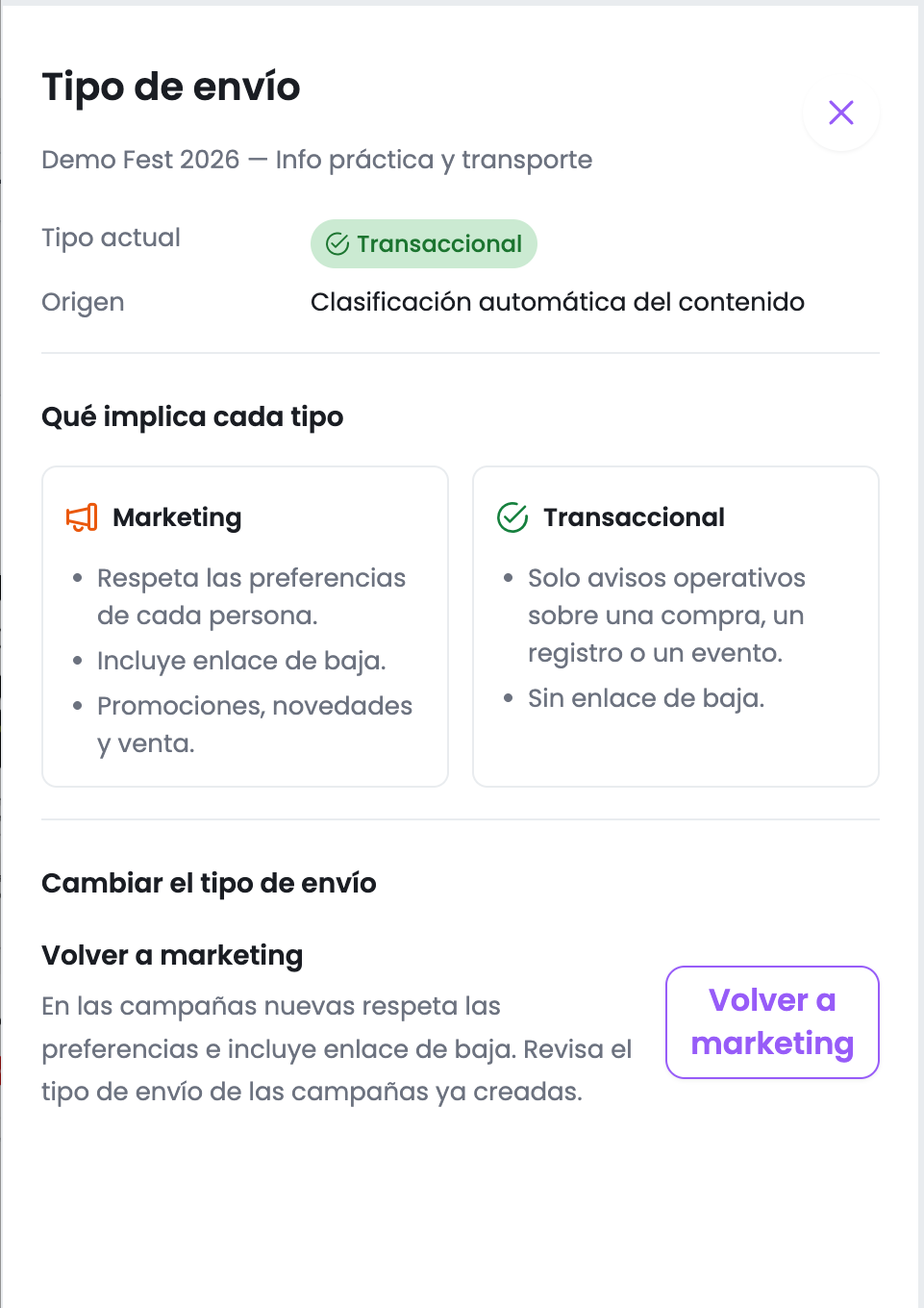
One detail to watch: switching back to marketing does not return the template to Nevent’s automatic classification. It pins it to marketing as a manual decision. The panel will keep showing “Manual change” as the source.
Result
Section titled “Result”The template keeps the type you chose and the panel reflects it, with “Manual change” as the source and the date of the change. In the template list the type label updates on its own.
The campaign wizard still works exactly as before: at the send type step it will suggest the type the template now has.
Next step
Section titled “Next step”If what you wanted was to understand the difference between the two campaign types rather than change a template, it is in the campaign reference. To design the template itself, go to how to design email templates.