
Cómo hacer
Waitlists: find and review your sign-ups
A waitlist is an experience where your audience signs up instead of buying a ticket. It is useful for measuring demand before tickets go on sale, for handling a sold-out event, or for gathering interest in a date that is not confirmed yet. This guide shows you where to find them and how to read their figures.
Step 1: Open the Experiences section
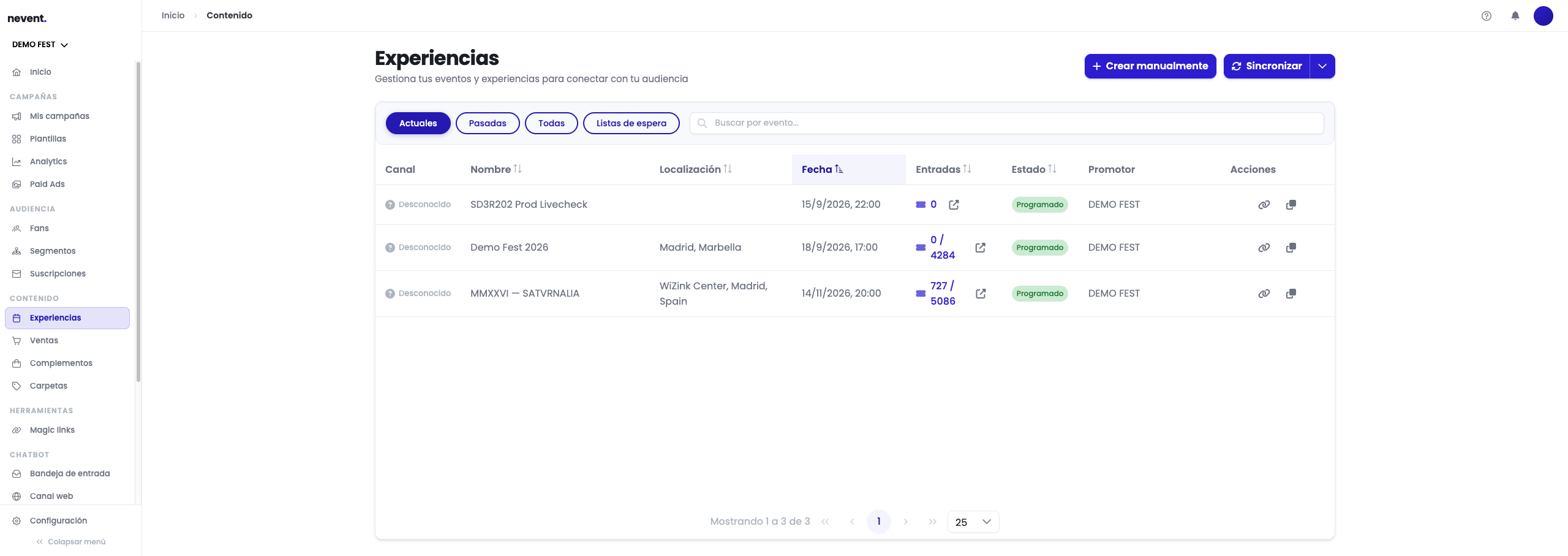
Section titled “Step 1: Open the Experiences section”In the side menu, inside the Content block, click Experiences.
Above the table you will see the view filter with its four options: Current, Past, All and Waitlists. The first three filter by date; the fourth filters by experience type.
Step 2: Switch to the Waitlists view
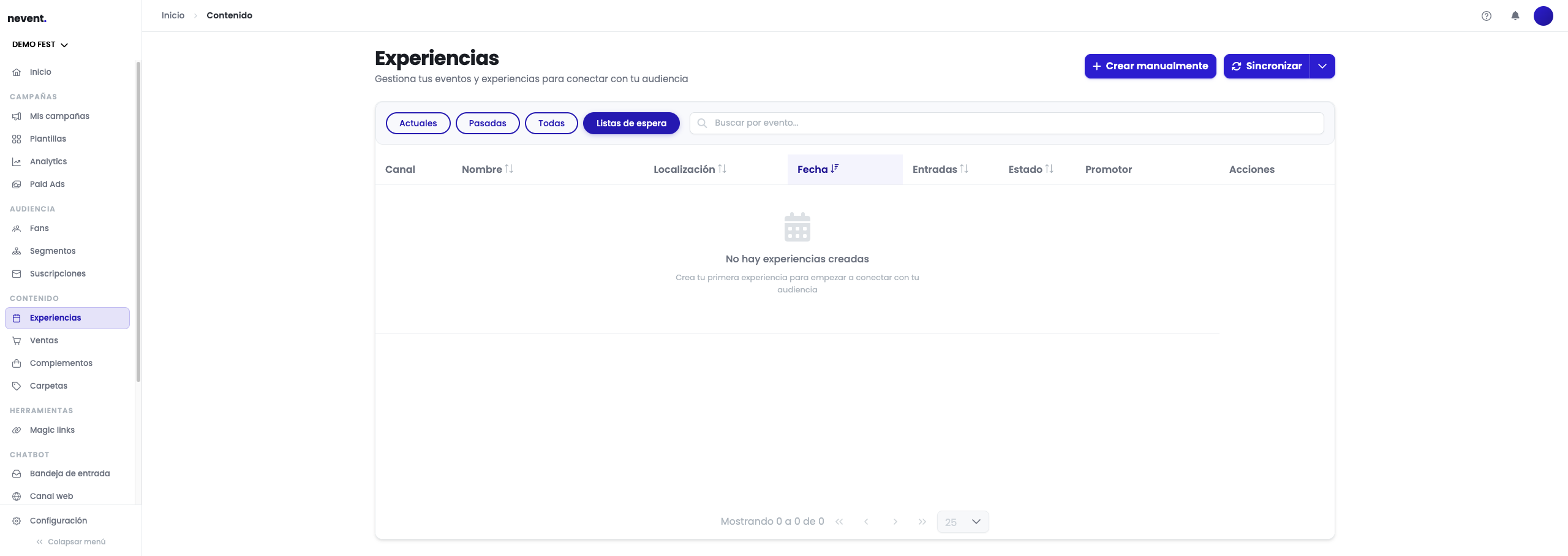
Section titled “Step 2: Switch to the Waitlists view”Click Waitlists. The table filters immediately and shows only experiences of this type, with the same columns as the other views.
If your account does not have any waitlist yet, the table will be empty. That is not an error: the view is always available and will fill up as soon as you create experiences of this type.
Step 3: Read the Tickets column as sign-ups
Section titled “Step 3: Read the Tickets column as sign-ups”In a waitlist nobody buys, so the Tickets column does not count sales: it counts people signed up, and the cell itself is labelled so you don’t mistake it for a sale.
This also changes how capacity reads. A waitlist usually has no capacity set, and in that case the cell shows only the number of sign-ups, without the “sold / capacity” fraction you would see in an event with tickets on sale.
Step 4: Open the detail to see who signed up
Section titled “Step 4: Open the detail to see who signed up”Click the name of the experience to open its record. In a waitlist, the left-hand panel reads Sign-ups rather than Attendees, and the screen is titled the same way.
The useful difference is in the buttons: a waitlist shows Create campaign for sign-ups, which takes you straight to messaging them, and drops the invite-attendees button, which would make no sense here. If nobody has signed up yet, the screen says so plainly instead of leaving you an unexplained empty table.
Result
Section titled “Result”You now know how to reach your waitlists and read them without confusing them with sales:
- The Waitlists view is the fourth option in the Experiences filter.
- The Tickets column counts people signed up, not tickets sold.
- With no capacity set, the cell shows only the number of sign-ups.