
Cómo hacer
The WhatsApp Business connection fails and I don't know why
You clicked Connect WhatsApp Business, Meta’s window opened and, back in Nevent, the connection isn’t there. Here’s how to read the message that appears under the button and how to get the attempt to support with everything they need.
Before you start
Section titled “Before you start”The connection is made from Settings → Channels → WhatsApp tab. If the problem is that Meta tells you the number isn’t eligible, that’s a different situation covered in Activate your channels.
This guide covers the cases where the process stops without a clear explanation.
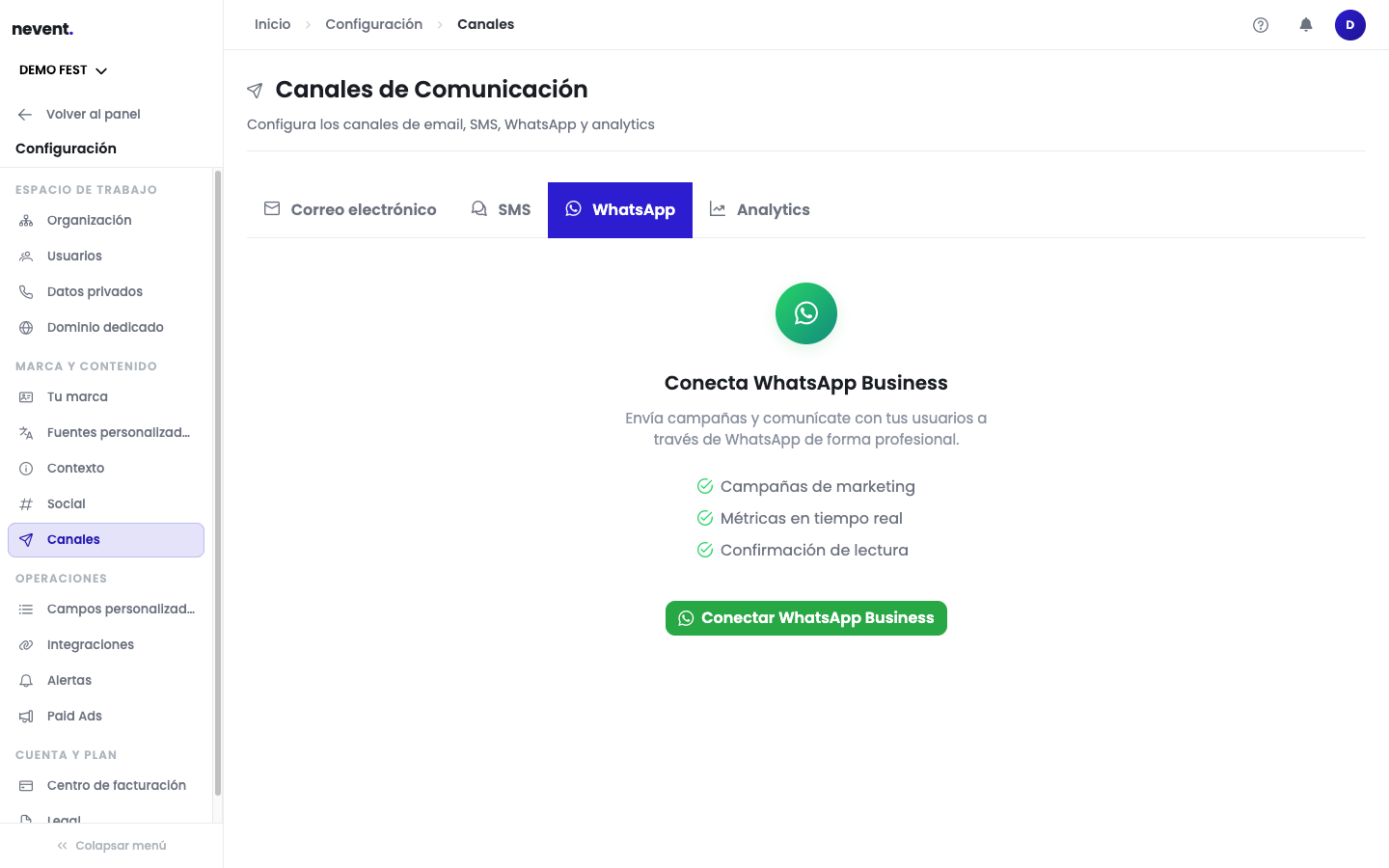
Step 1: Read the message shown after the attempt
Section titled “Step 1: Read the message shown after the attempt”After a failed attempt, under the connect button Nevent shows an informational notice summarising what happened, in your terms. It can be one of three kinds:
| Message | What it means |
|---|---|
| Meta stated the reason: … (code …) | Meta reported a concrete cause. That’s the one to fix. |
| This attempt ended on Nevent’s side (…) and Meta stated no reason. Reference: … | The process stopped in Nevent, not in Meta. The cause is in brackets: Nevent stopped waiting for Meta’s answer, the window closed without an authorization code, the attempt’s grant expired, Nevent’s server rejected the connection, or you left the page during the process. |
| Meta closed the process without stating any reason. Nevent cannot infer one, so we claim nothing about the number. Reference: … | Meta ended the process without an explanation. Nevent doesn’t make one up. |
The last two messages include a reference. Note it down: it’s what support needs to locate the attempt.
Step 2: Check whether diagnostics are waiting to be sent
Section titled “Step 2: Check whether diagnostics are waiting to be sent”Next to the notice a second line may appear reading N diagnostics events waiting to be sent (or held for another account, or that could not be delivered). These are the technical data of the attempt that Nevent stores in your browser and sends to its servers so support has them. If you don’t see this line, everything has already been sent.
If you see This browser cannot store diagnostics, some of that data may be lost when you close the tab: in that case, report the attempt (step 3) before closing it.
Step 3: Report the attempt to support
Section titled “Step 3: Report the attempt to support”Under the notice you’ll find the Report this attempt button. It’s only offered after a failed attempt, never after a successful connection. Clicking it opens a form with these fields, all optional:
| Field | What it’s for |
|---|---|
| Meta session ID | If Meta’s window offered you “Report a problem” and gave you an identifier, paste it here. |
| Meta error reference | Same as above, if Meta gave you an error reference. |
| Last 4 digits of the number | Four digits only, so support knows which number you were trying to connect. Never enter the full number. |
| What happened | Describe in your own words what you saw in Meta’s window. |
The form shows the attempt’s support reference. Quote it if you also contact support through another channel.
Fill in at least one field and click Send. You’ll see the confirmation Thank you. We saved your description with this attempt.
What to check
Section titled “What to check”- If the notice says Meta stated the reason, act on that cause.
- If it says you left the page during the process, try the connection again without switching tabs until Meta’s window closes on its own.
- If it says Nevent stopped waiting or the attempt’s grant expired, try again; if it repeats, report the attempt with the reference.
- If it says Meta closed the process without stating any reason, report the attempt and, if you used “Report a problem” in Meta’s window, include the reference it gave you.
Next step
Section titled “Next step”- Activate your channels to go back to the full channel activation flow.
- Deliverability reference to review what the number needs before connecting it.