
Cómo hacer
Check that your sales reach Meta
También llamado: conversions API, offline conversions
When your Meta account is connected, Nevent sends your ticket sales back to it so that Meta can tell you which campaigns really sell, not just which ones get clicks.
In this guide you turn on that delivery, check that it is working and learn to read the screen that summarizes it. About 5 minutes.
Before you start
Section titled “Before you start”You need your Meta Ads account connected. You check it in step 1.
There is no need to paste tokens or touch code: Nevent uses the Meta connection you already have.
Step 1: Check that Meta is connected
Section titled “Step 1: Check that Meta is connected”In the side menu, go to Settings and click Paid Ads.
You will see one card per platform. The Meta Ads card should show the Connected status, with the account name and when it last synced.
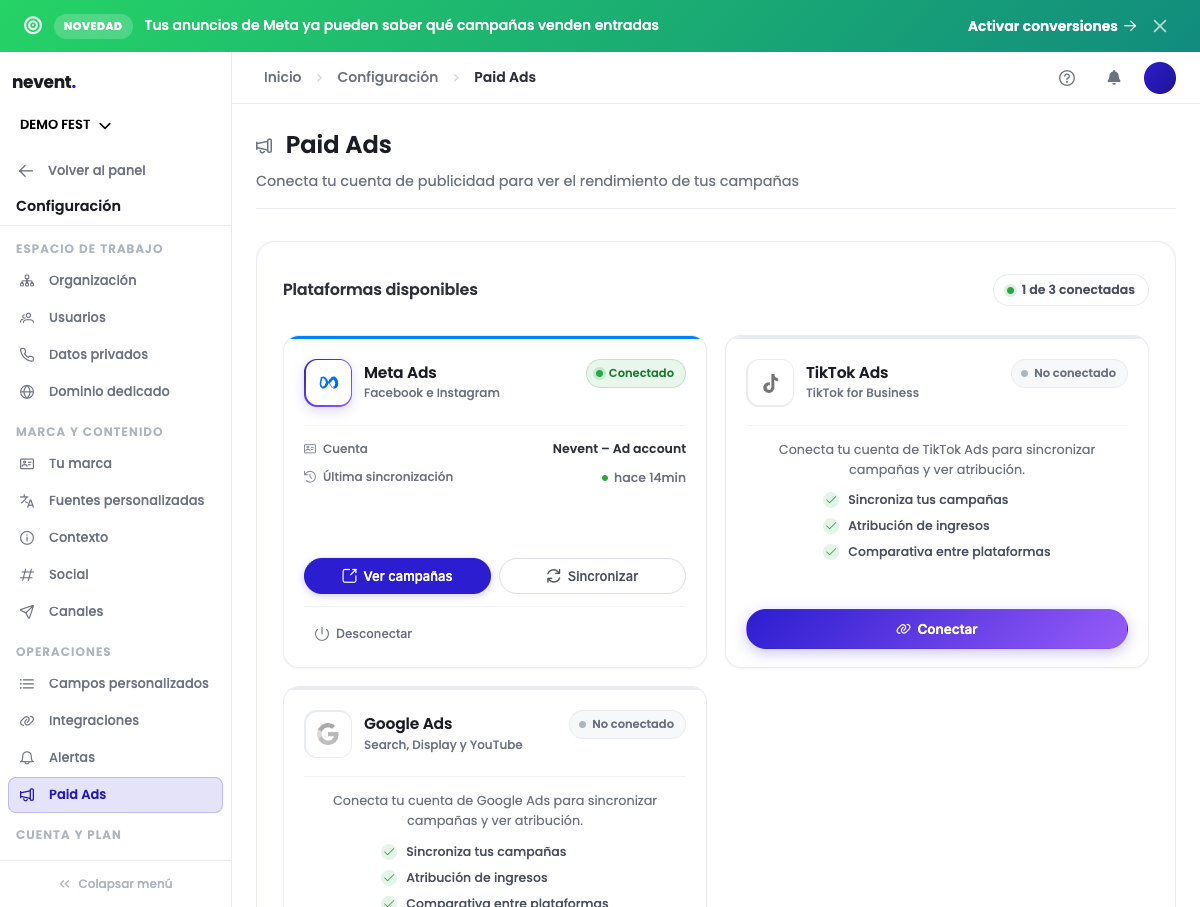
TikTok Ads and Google Ads also appear here, but sending sales only works with Meta today. Connecting them lets you sync audiences and see their campaigns, not receive your sales back.
Step 2: Open the Conversions screen
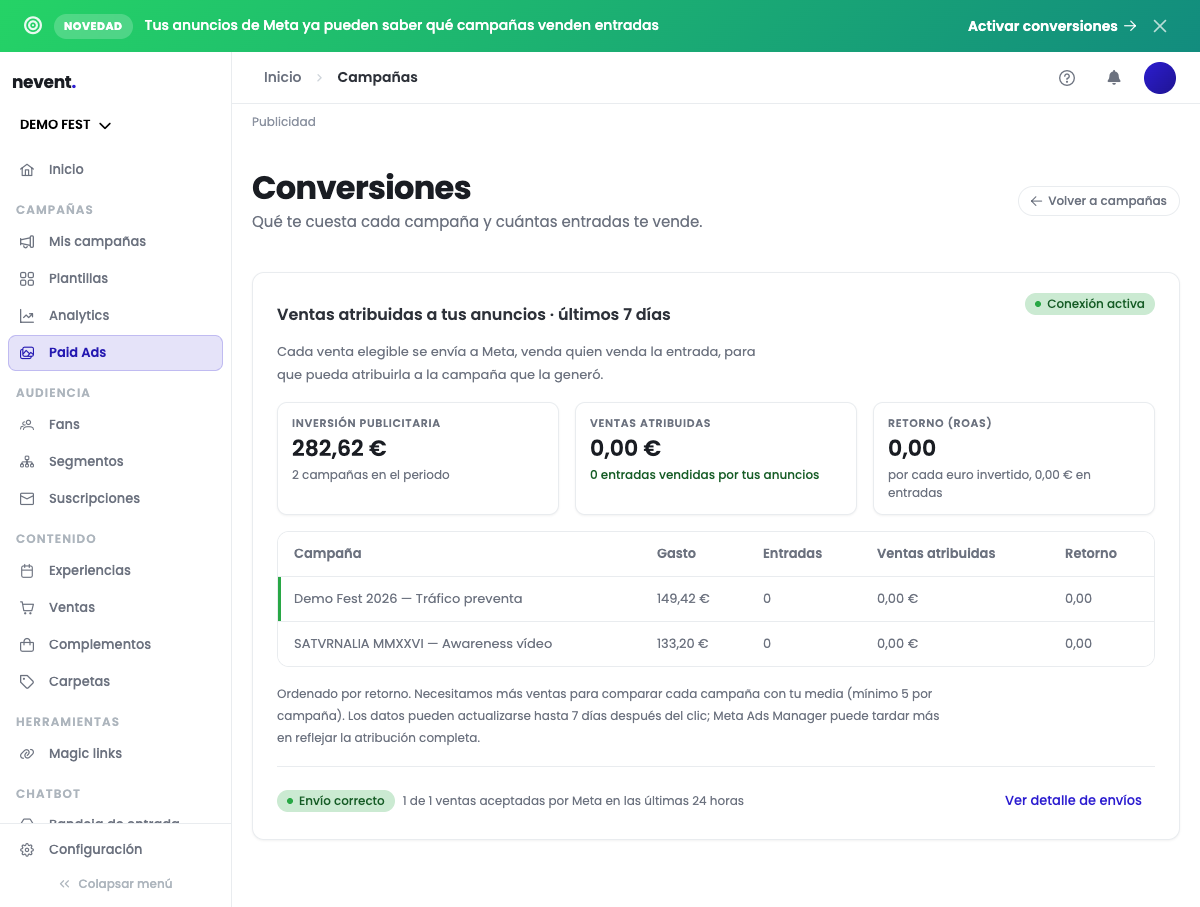
Section titled “Step 2: Open the Conversions screen”In the side menu, go to Paid Ads and from there to Conversions. You can also go straight to /paid-ads/conversions.
What you find here depends on whether delivery is already running:
- If you see the Connection active label, your sales are already being sent. Skip to step 4.
- If you see the Activate conversions in three steps card, continue with step 3.
Step 3: Turn on delivery
Section titled “Step 3: Turn on delivery”The activation card summarizes the three steps and tells you which one you are on:
- Connect your Meta account. If step 1 went well, it already shows as Connected.
- Choose the destination in Meta. Nevent lists the pixels of your own ad account, each with its name and its last activity, so you do not have to look for codes anywhere. Choose the one you use for your campaigns.
- Activate delivery. Press Activate delivery. From then on, every eligible sale reaches Meta in under a minute and the screen starts showing you the return per campaign.
It is included in your plan and you can turn it off whenever you want (step 5).
Step 4: Read the three indicators
Section titled “Step 4: Read the three indicators”With delivery active, the screen summarizes the last 7 days in three numbers:
- Ad spend: what you have spent on ads in the period.
- Attributed sales: how much money in tickets that spend has generated, according to Meta.
- Return (ROAS): how much you get in tickets for each euro invested.
Below you have the breakdown by campaign, with the spend, the tickets sold and the attributed sales of each, sorted by return.
Two notices you will see on the screen itself and should take seriously:
- Nevent needs a minimum of 5 sales per campaign to compare that campaign with your average.
- The data can move for up to 7 days after the click, and Meta Ads Manager usually takes a little longer still to show the complete attribution.
In other words: do not judge a campaign on its first day.
Step 5: Check the delivery status
Section titled “Step 5: Check the delivery status”At the bottom of the screen a summary like “Delivery healthy · 1 of 1 sales accepted by Meta in the last 24 hours” appears. That is the figure that tells you whether the pipeline works.
If you want to see the detail, press View delivery detail. You only need this view if something does not add up. Next to that link there is also Deactivate delivery, in case at some point you want to stop sending your sales to Meta.
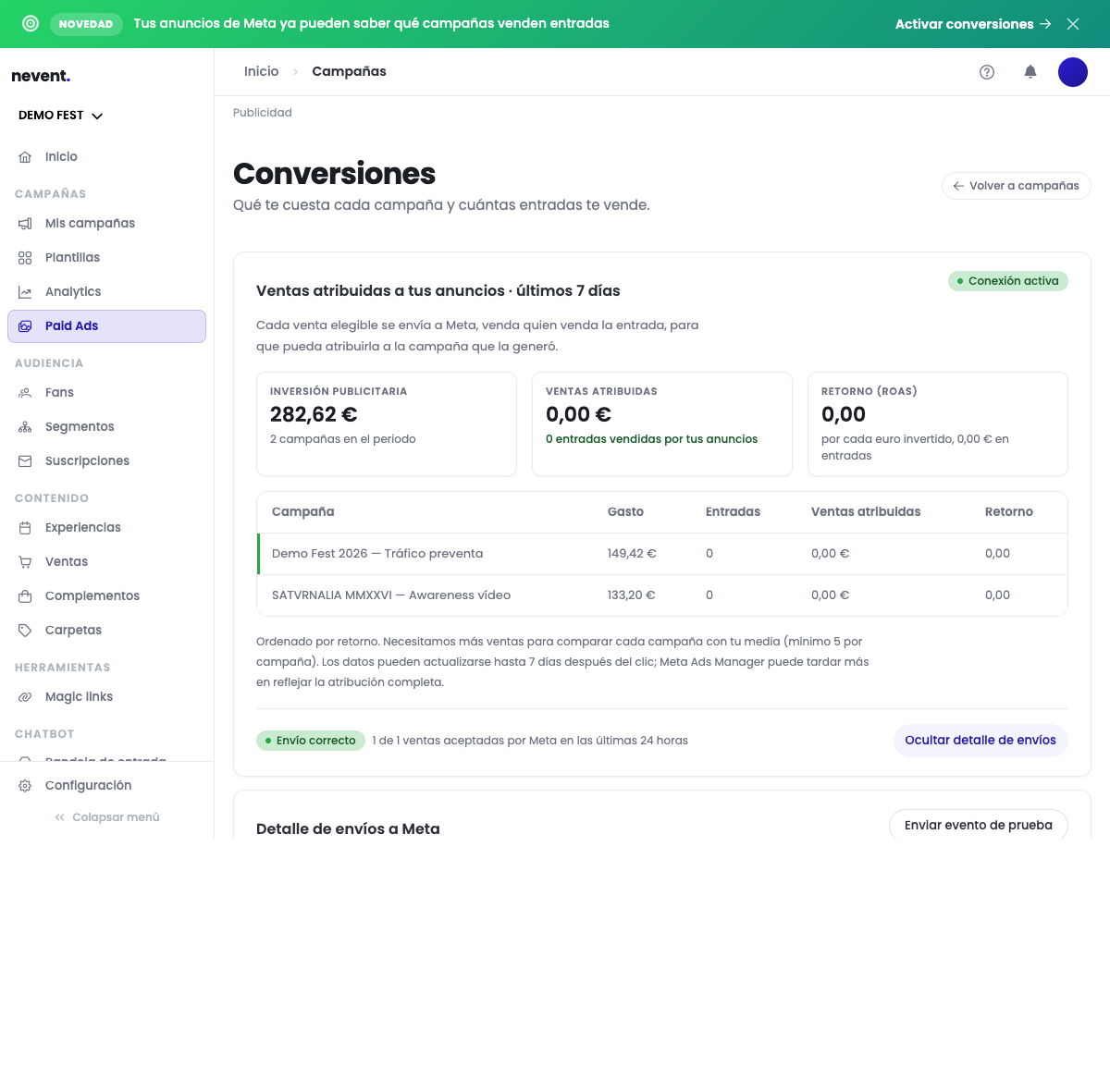
There you find:
- The match data sent per sale, up to 13, depending on what you know about each buyer. The more you have, the more sales Meta can recognize.
- The sale-by-sale log, with its date, a purchase identifier, the status and the reason if something failed.
- Send test event, which checks the connection right there without you having to go to Meta.
If delivery is healthy but attributed sales are at zero
Section titled “If delivery is healthy but attributed sales are at zero”This is the most common case at the start, and it is almost never a failure.
Meta accepting a sale only means it has received it and understands it. To attribute it to a campaign, it also needs to recognize that person and match them to an ad they saw or clicked. That fails when:
- Buyer data is missing. With only an email, Meta recognizes fewer people than if it also has their phone, name or city. Having your ticketing provider connected, instead of uploading CSVs, helps here.
- The sale carried no campaign data. The click identifier only exists if the purchase came from the ad. Marketplace sales usually do not carry it.
- It is still early. Remember the 7-day window.
- No ad generated the sale. If you sold that ticket by email or at the box office, Meta receives it, checks it is not its own and does not attribute it. It works as it should.
If the log shows rejected sales with a reason, there is something to fix: write to us with that reason in front of you.
What to do with this
Section titled “What to do with this”Once you have a couple of weeks of data, compare the return per campaign on this screen with the one Meta Ads Manager gives you. The difference between them is exactly what Meta could not see before, and it tells you where you were investing blind. We explain it in why your real CPA is not the one you see in Meta.